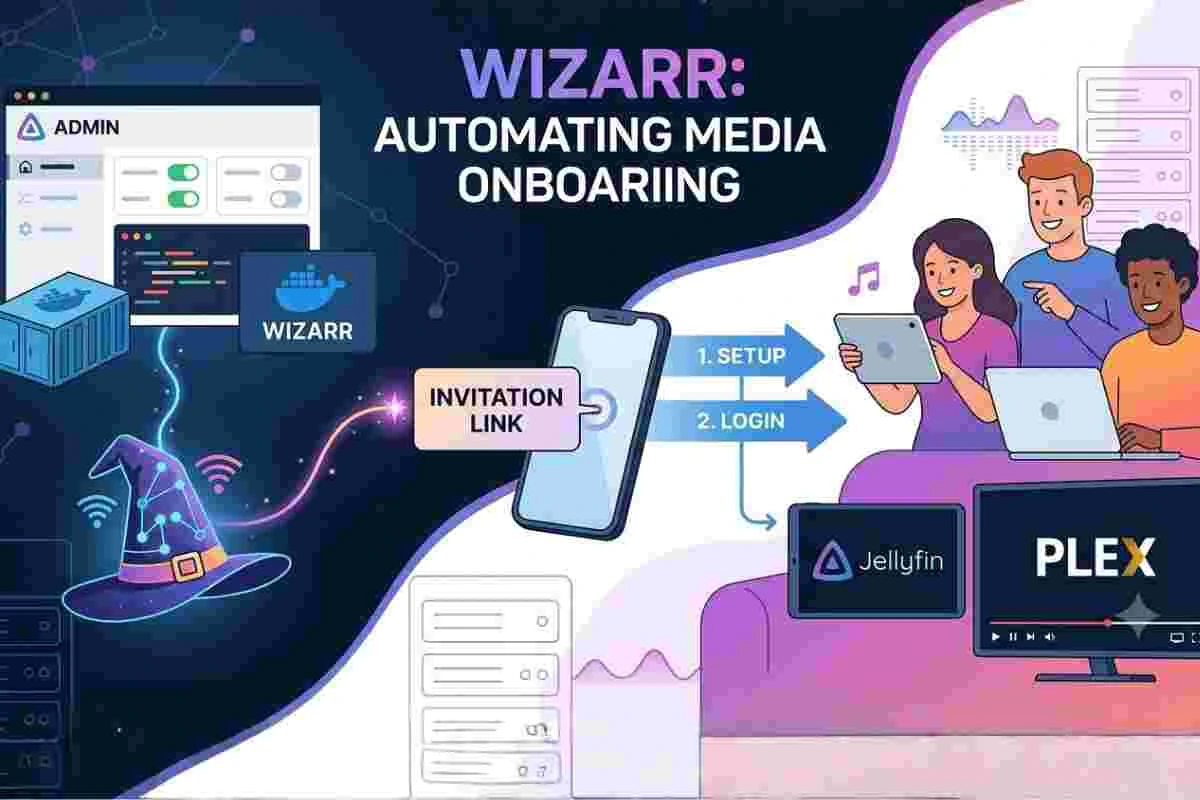
Wizarr is one of those tools that really makes self-hosting feel simple. When I first tried setting it up for a media server like Jellyfin, I realized how much time it saves by automating user invites instead of manually creating accounts.
Instead of explaining setup steps to every user, you just send a link and Wizarr handles the rest through a guided flow.
In this article, I’ll walk through Wizarr in detail, including setup, Docker installation, login process, port configuration, GitHub, Jellyfin integration and demo access, so you can understand exactly how it works in real use.
Quick Overview of Wizarr
Wizarr is an open-source onboarding tool for self-hosted media servers like Jellyfin and Plex. It automates user invitations and provides a guided setup experience using Docker-based installation.
Key highlights:
- Automated user onboarding
- Docker-based deployment
- Jellyfin & Plex integration
- Secure invite system
- Self-hosted and open-source
What is Wizarr and Why It Matters
Wizarr is a modern onboarding system built specifically for self-hosted media platforms. Its core purpose is to automate how new users join a media server and understand how to use it.
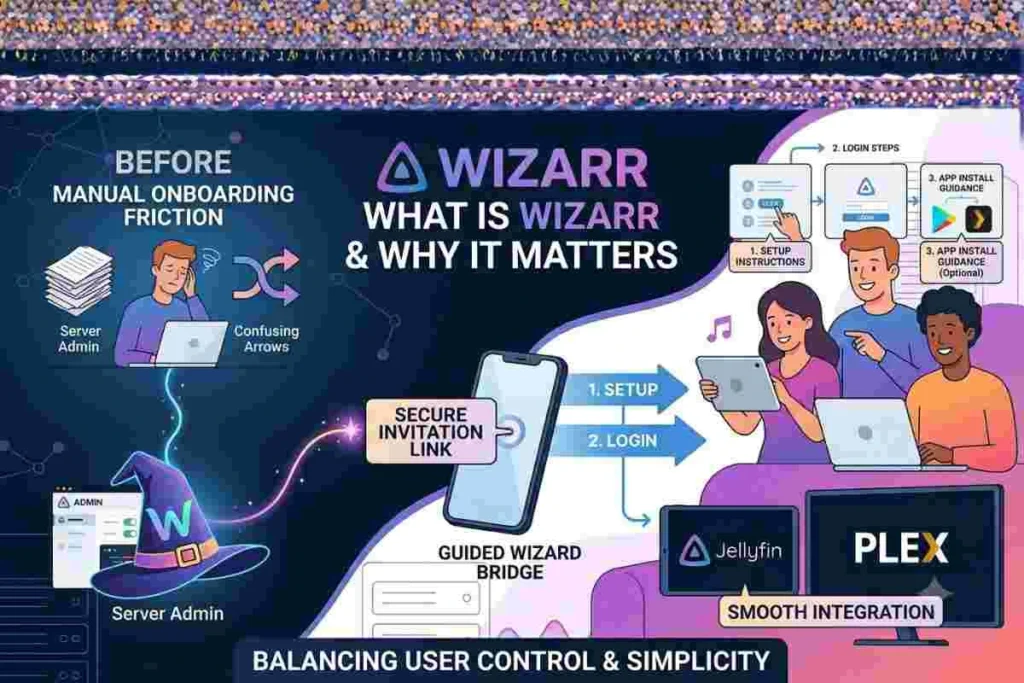
Traditionally, setting up users on Plex or Jellyfin required manual account creation, sharing credentials and explaining how to access content. Wizarr eliminates this friction by introducing a guided wizard-based system that walks users through every step.
At its core, Wizarr acts as a bridge between server administrators and end users. It creates a structured onboarding experience where users receive a secure invitation link.
Once they open it, they are guided through setup instructions, login steps and sometimes even app installation guidance depending on how the admin configures the system. This makes Wizarr especially useful for communities, shared media libraries and private streaming setups.
The increasing popularity of self-hosting has made tools like Wizarr essential. Users want control over their media, but they also want simplicity. Wizarr balances both by offering automation without removing flexibility.
It integrates smoothly with platforms like Jellyfin, Plex, and other developer tools like ChromiumFX for advanced system integration, making it a valuable addition for anyone managing a personal or community-based media server environment.
System Requirements for Wizarr
Wizarr is a lightweight self-hosted tool, but it still requires a properly configured environment to run smoothly. Since it is Docker-based, most of the dependencies are handled through containers.
- Docker must be installed (latest version recommended)
- Compatible with Linux servers, NAS devices, and virtual machines
- Minimum 1GB RAM (2GB recommended for stable performance)
- Stable network connection for media server integration
- Open ports required for web access (configurable during setup)
Wizarr Setup and Installation Process
Wizarr uses a Docker-based installation approach, making it consistent across different systems.
Step 1: Install Docker
Make sure Docker is installed and running on your system.
Step 2: Pull Wizarr Image
Download the official Wizarr Docker image.
Step 3: Configure Environment Variables
Set up database paths, ports, and server configurations.
Step 4: Run the Container
Start the Wizarr container using Docker commands or docker-compose.
Step 5: Access the Dashboard
Open your browser and access Wizarr using your server IP and configured port.
Wizarr Docker Installation Explained
Wizarr Docker Installation Commands
docker pull wizarr/wizarr
docker run -d \
-p 5690:5690 \
-v wizarr_data:/data \
wizarr/wizarr
Alternatively, a docker-compose file can be used for more advanced setups including environment variables and persistent storage.
The most common method of installing Wizarr is through Docker, which simplifies deployment and reduces compatibility issues. Wizarr Docker installation allows users to run the application in an isolated environment without directly modifying system dependencies. This makes it easier to update, maintain and migrate the system if needed.
When using Wizarr Docker, the process usually involves pulling the official image from the repository and running it with a predefined configuration file.
This setup includes defining volumes for persistent data, setting environment variables and mapping ports for web access. Once deployed, Wizarr runs as a containerized service that can be managed independently from the host system.
Docker also ensures that Wizarr behaves consistently across different environments. Whether you are using Ubuntu, Debian or a NAS system, the Docker image remains the same. This is particularly useful for users who want a stable and predictable deployment without worrying about system-specific conflicts.
A typical Wizarr Docker setup also allows integration with reverse proxies like Nginx or Traefik, which improves security and enables custom domain access. This flexibility is one of the reasons Docker is the recommended installation method in the official documentation.
For detailed official reference, you can review the project documentation here: Wizarr Documentation
Reverse Proxy and SSL Configuration
In production environments, Wizarr is often placed behind a reverse proxy for better security and domain management.
Typical setup includes:
- Mapping a domain to the server IP
- Forwarding requests using Nginx or Traefik
- Enabling HTTPS using Let’s Encrypt SSL certificates
This allows Wizarr to be accessed securely via a custom domain instead of an IP address and port.
Wizarr Login, Port Configuration and Access
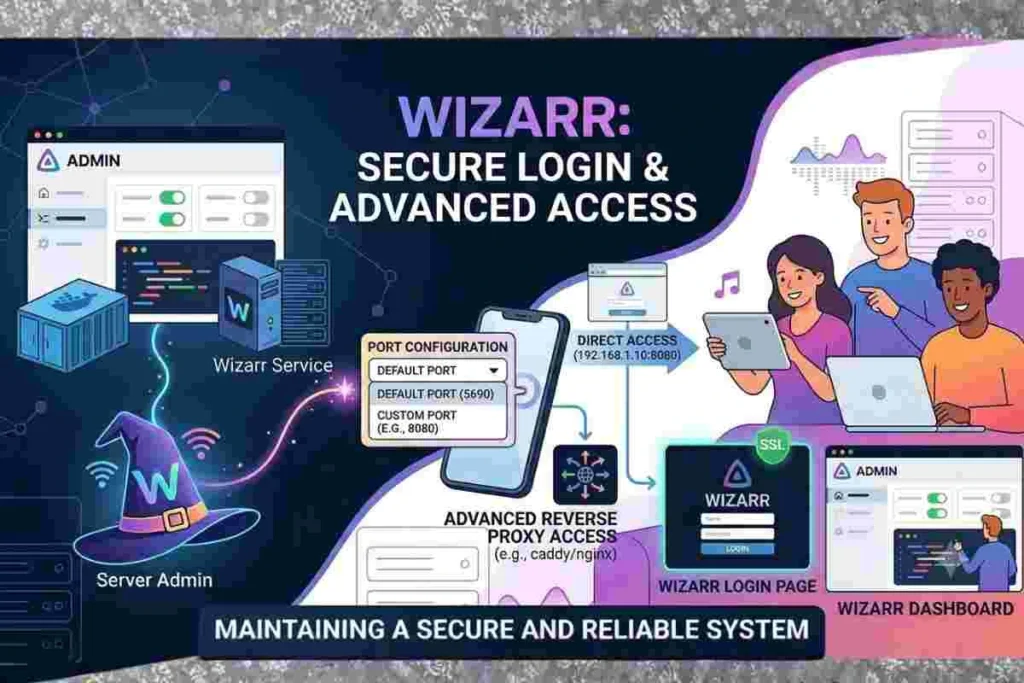
Once Wizarr is installed and running, accessing the system is done through the Wizarr login page. This interface is where administrators manage invitations, configure onboarding flows, and connect media servers. The login system is typically secured, ensuring that only authorized users can modify settings or generate invite links.
In most installations, Wizarr runs on a default port, but this can be customized during setup. The Wizarr port configuration is important because it determines how the application is accessed over the network. If you are running multiple services on the same server, changing the port helps avoid conflicts and ensures smooth operation.
The Wizarr login process itself is designed to be simple. After entering credentials, users are taken to a dashboard where they can manage invites and monitor onboarding activity. This interface is clean and focused on usability, which makes it accessible even for users with limited technical knowledge.
In more advanced setups, administrators often place Wizarr behind a reverse proxy with SSL encryption. This improves security and allows access through a custom domain instead of an IP address and port combination. Proper configuration of Wizarr login and port settings is essential for maintaining a secure and reliable system.
Wizarr Security and Authentication Setup
Proper security configuration is important when running Wizarr in production.
- Use strong admin credentials
- Enable HTTPS using SSL certificates
- Avoid exposing default ports publicly
- Configure firewall rules to restrict unauthorized access
- Run Wizarr behind a reverse proxy for added security
Wizarr GitHub, Demo and Jellyfin Integration
Wizarr is an open-source project hosted on GitHub, which allows developers and server administrators to inspect, modify and contribute to its codebase. The Wizarr GitHub repository contains installation files, documentation and community contributions. This transparency is one of the key reasons behind its growing popularity in the self-hosting community.
You can explore the official repository here: Wizarr GitHub
For users who want to test the system before installation, the Wizarr demo provides a preview of how the onboarding flow works. This is especially useful for administrators who want to understand the user experience before deploying it on their own server.
One of the strongest features of Wizarr is its integration with Jellyfin. Wizarr Jellyfin support allows administrators to automate user access for Jellyfin media servers, similar to Plex integration. Once connected, Wizarr can automatically handle user invitations, permissions and onboarding steps for Jellyfin users without manual configuration.
This integration makes Wizarr highly valuable for community-driven streaming setups where multiple users need controlled and structured access to media content.
How to Connect Wizarr with Jellyfin
Wizarr integrates with Jellyfin to automate user onboarding and access management.
- Obtain Jellyfin server URL from your setup
- Generate an API key from Jellyfin admin dashboard
- Add server details and API key into Wizarr settings
- Test the connection to ensure proper integration
Once connected, Wizarr can automatically manage user invitations and onboarding for Jellyfin.
Features, Benefits and Real-World Use Cases
Wizarr offers a wide range of features that make it a powerful onboarding tool for media servers. Its primary feature is automated user invitations, which removes the need for manual account creation. It also supports customizable onboarding flows, allowing administrators to design unique experiences for different user types.
Another major benefit is its flexibility. Wizarr can be adapted for small personal setups as well as large community servers. It supports multiple media platforms, integrates with external services and can be customized based on user requirements.
In real-world use cases, Wizarr is commonly used in private streaming communities, shared Plex libraries and educational media servers. It ensures that users are guided properly from the moment they receive an invite, reducing confusion and support requests.
The biggest advantage of Wizarr is time efficiency. Administrators no longer need to manually guide every user through setup. Instead, Wizarr automates the entire process, allowing systems to scale without increasing workload.
Wizarr vs Alternatives
- Wizarr vs Manual Onboarding: Wizarr automates user invitations, while manual onboarding requires admin intervention
- Wizarr vs Jellyseerr: Jellyseerr focuses on media requests, while Wizarr focuses on onboarding users
- Wizarr vs Plex Invites: Plex offers basic invites, while Wizarr provides a guided onboarding experience
Challenges, Limitations and Best Practices
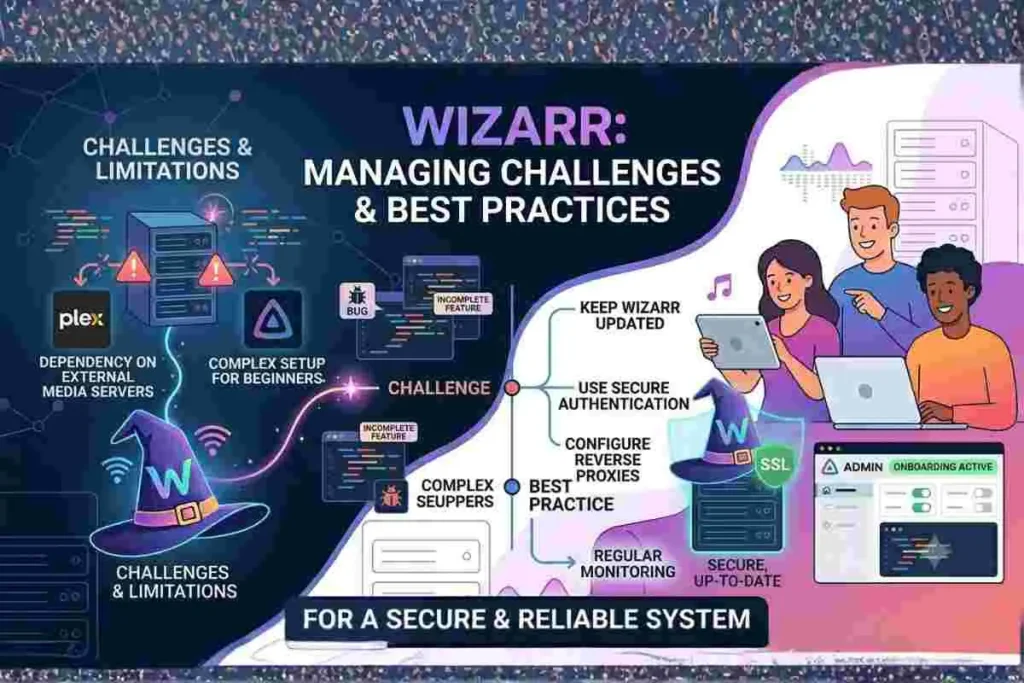
While Wizarr is powerful, it is not without challenges. One limitation is that it depends heavily on correct server configuration. If Docker, ports or network settings are not properly configured, the onboarding flow may fail. This makes the initial setup slightly complex for beginners.
Another challenge is dependency on external media servers like Plex or Jellyfin. Wizarr does not function independently and requires a properly configured media backend to be useful. Additionally, since it is an open-source project, users may occasionally encounter bugs or incomplete features during updates.
To get the best results, it is recommended to follow best practices such as keeping Wizarr updated, using secure authentication methods and properly configuring reverse proxies. Regular monitoring also helps ensure smooth performance in production environments.
Common Issues and Troubleshooting
- Docker container not starting → check port conflicts
- Jellyfin connection failure → verify API key and server URL
- Login issues → reset admin credentials
- Reverse proxy errors → review Nginx or Traefik configuration
- Port not accessible → ensure firewall rules allow traffic
Conclusion
Wizarr is a powerful and modern solution for simplifying media server onboarding. It removes complexity, improves user experience and automates repetitive administrative tasks.
With support for Docker, Jellyfin and flexible onboarding flows, it fits perfectly into the self-hosting ecosystem.
For administrators managing Plex or Jellyfin servers, Wizarr offers a practical way to scale user access without increasing workload.
Its open-source nature and active development also make it a reliable long-term solution for media management systems.
FAQ’s
What is Wizarr used for?
Wizarr is used to automate user onboarding for media servers like Plex and Jellyfin. It simplifies the process of inviting new users and guiding them through setup without manual intervention.
How do I access Wizarr login?
You can access Wizarr login through your server IP or domain followed by the configured port. After entering credentials, you are redirected to the dashboard for managing invites and settings.
Is Wizarr free to use?
Yes, Wizarr is completely open-source and free to use. It is available under an open license and can be self-hosted without any subscription cost.
Can I use Wizarr with Jellyfin?
Yes, Wizarr Jellyfin integration is supported. It allows automatic onboarding and user management for Jellyfin media servers.
What is Wizarr Docker setup?
Wizarr Docker setup is the recommended installation method. It involves running Wizarr as a container for easier deployment, updates and system compatibility.
Does Wizarr have a demo?
Yes, Wizarr demo environments are available for testing the onboarding flow before installation. This helps users understand how the system works.